The dashboard, view by view
The kenny dashboard is a single-page web app served by the server at /. It works in
light and dark themes and is driven by the login session you get at /login (multi-user
accounts, roles, and per-user host scope — see Accounts & roles).
This page is the exhaustive tour: every destination, panel, menu, popup, and interaction. If you just want the common workflows, start with the User guide; come back here when you want to know what a particular control does.
How to read this page
kenny has five destinations — Today, Fleet, Inbox, Log, and
Admin — plus Ask kenny, a global overlay drawer you open with ⌘K (Ctrl+K on
Windows/Linux) from anywhere. Each destination is a URL you can bookmark: #/today,
#/fleet, #/fleet/{host}, #/inbox, #/log, #/admin/{section}. A signed-in
account also has its own #/profile. Old bookmarks from before the redesign still
work — see Old bookmarks & redirects. The examples below
use a demo fleet of six family PCs.
The shell: header & global controls

Every view shares one header:
- Brand — the kenny mark and "fleet console" subtitle (top-left).
- Destination nav — Today · Fleet · Inbox · Log · Admin. The active destination is highlighted; Inbox carries a live count badge for however many items currently need you — it mirrors the NEEDS YOU group's count. Clicking the nav item always opens the Inbox page itself; the badge is informational, not a filter. Admin only appears for an operator or superuser (see below).
- Online count — a compact
x/y onlinefigure for the whole fleet, always visible. - Ask kenny (⌘K) — a header button (labelled
ASK KENNY ⌘Kon desktop, an icon on mobile) that opens the Ask kenny overlay. The same shortcut works from anywhere in the dashboard, not just one destination. - Theme toggle — a header button carrying a moon or sun; it names the theme it switches
to. The choice is saved per account (
PUT /api/me/theme) and also kept in the browser, so it applies before first paint rather than flashing the other theme. A legacy shared-token identity has no account to save against and keeps the browser copy only. - Account block — at the foot of the sidebar: your initials, your username and your
role. It links to Profile. Beside it is log out (
/logout), a plain link rather than a request, so signing out survives a broken session. - Fleet line — under the account block: the running server version, how many agents are enrolled and whether they are all reporting. Clicking it opens About kenny.
Accounts & roles (the user menu)
kenny is multi-user (ADR-0033). On first run the dashboard shows a one-time setup page; the first account you create becomes the superuser. After that, three roles gate what each destination shows:
- Superuser — everything, including Admin's Users section.
- Operator — the whole fleet (all hosts, all fleet operations), the Inbox, the Log, and Admin's Updates and Alarm rules sections — but not user management and not the rest of Admin.
- User — only the hosts assigned to them: they see and can operate on those hosts on
Fleet, and can open and work their own tickets in the Inbox, but cannot remove a host
from inventory and never see Admin. The Log is theirs, narrowed to their own machines:
GET /api/logfilters every row to the caller's host scope, so auserreads the tool calls, alerts and log lines for the PCs assigned to them and nothing else.
Profile (all roles with a real account) lets you set your email, pick an
avatar from the dog-breed grid, change your password, enable/disable two-factor
(TOTP), mint/revoke personal access tokens, and set your theme. Claude Desktop
normally connects with the built-in OAuth flow
(ADR-0037) — no token needed; personal
access tokens are the Bearer credential for scripts and other MCP clients that can't do
OAuth, sent as Authorization: Bearer <pat> to /mcp and shown once at creation.
Admin → Users (superuser only) lists every account and lets you create, edit (role,
email, avatar, enable/disable), delete, reset a password, reset 2FA, assign the host
scope, set its capability profile, and manage that user's access tokens. Host scope
reads two ways depending on the role: for a user account it is a limit — the only hosts
it can see — while for an operator or superuser it limits nothing and instead names which
PCs are that person's own, which is what an unqualified Discord request is taken to be
about (see Which PC a request is about). A
capability profile is a named tool allowlist that only ever narrows what the account's
role already allows — self-service-basic, power-user, operator, or (none — role
default) are the shipped choices — and applies wherever that account acts, Discord
included. See Capability profiles.
Existing single-token installs keep working across the upgrade: the legacy
KENNY_OPERATOR_TOKEN is still accepted as a back-compat superuser while you create real
accounts.
Today
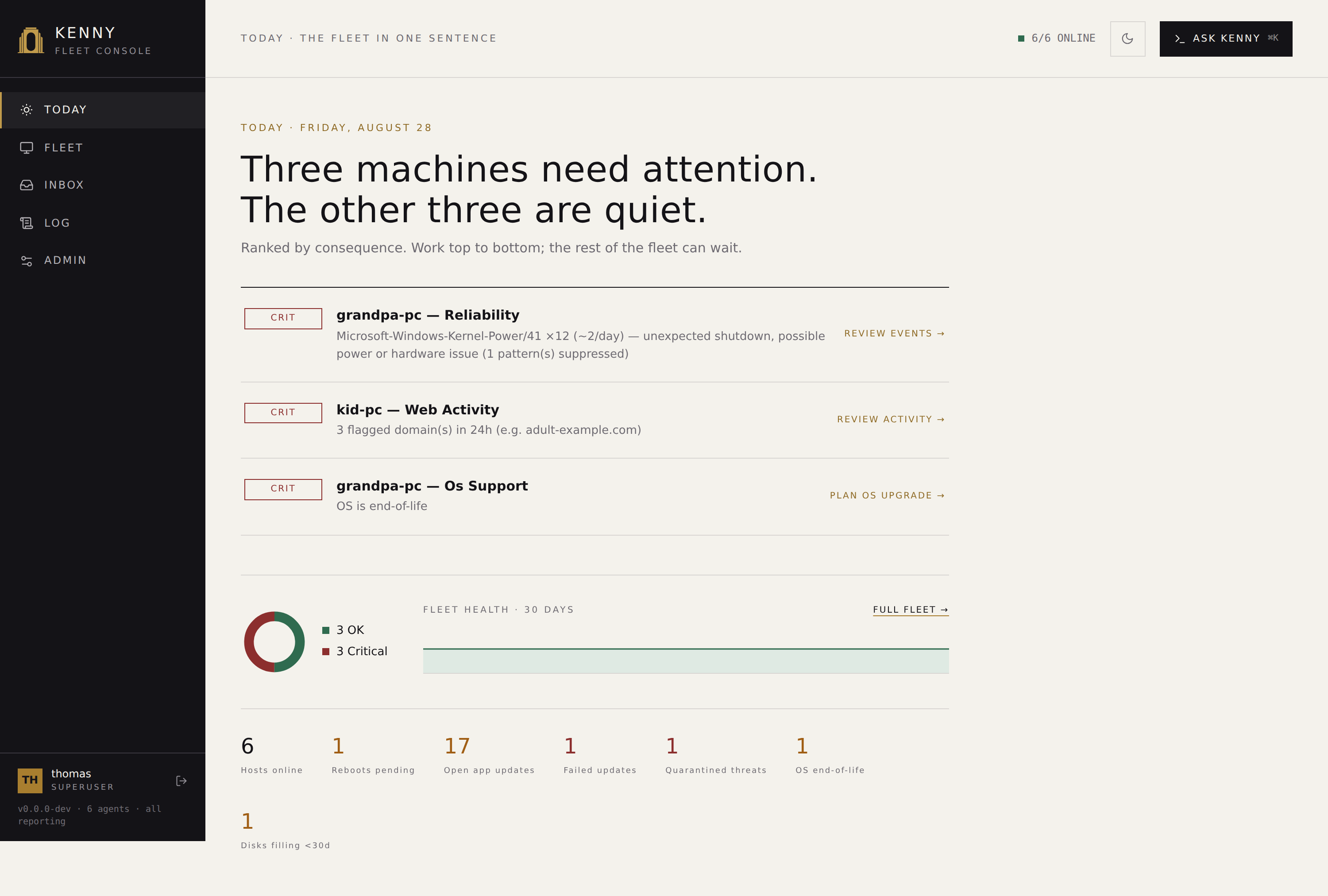
The landing view — the fleet in one sentence, not a wall of charts. It is built to be read in a few seconds, not studied.
- Verdict sentence — a plain-English summary of the whole fleet, e.g. "Two machines need attention. The other four are quiet." Generated server-side from the same ranking described next.
- Ranked items — at most three, ordered by consequence: a critical section beats a warning section, which beats a held approval, which beats a stale ticket. Each row shows a severity tag, a title, a one-line detail, and an action link that jumps straight to what the row is about — the flagged section's own detail, or the ticket behind it. "Ranked by consequence. Work top to bottom; the rest of the fleet can wait" is the intent — everything else is one click away on Fleet or Inbox, never buried here.
- Standing facts — one muted line,
N posture findings unchanged, for sections in theposturetier across the fleet (ADR-0058): counted here, never ranked into the items above, detailed on each host page. Within a severity, the items are ordered newest finding first, and each carries how long it has stood (since 3 d) once the alert loop has recorded it. - Health donut — the fleet's status mix as three numbers: healthy, warning, critical. A host whose only findings are posture counts as healthy.
- Fleet health · 30 days — a trend line of the same mix over the last month, with a full fleet → link into Fleet.
- Eight KPI numbers — the fleet vitals worth a glance even when nothing is flagged: hosts online, reboots pending, open app updates, failed updates, quarantined threats, OS end-of-life, disks forecast to fill within 30 days, and hardware at risk — the number of hosts with a hardware forecast standing (a worn SSD, a first disk error, a slowing fan, a degrading link, a rising error rate).
"All quiet" is a first-class state, not an empty placeholder: when nothing ranks for attention, the ranked-items list is simply absent and the verdict sentence says so plainly. The page keeps showing the last-known figures while it refreshes in the background, rather than blanking or erroring on a slow network.
Fleet
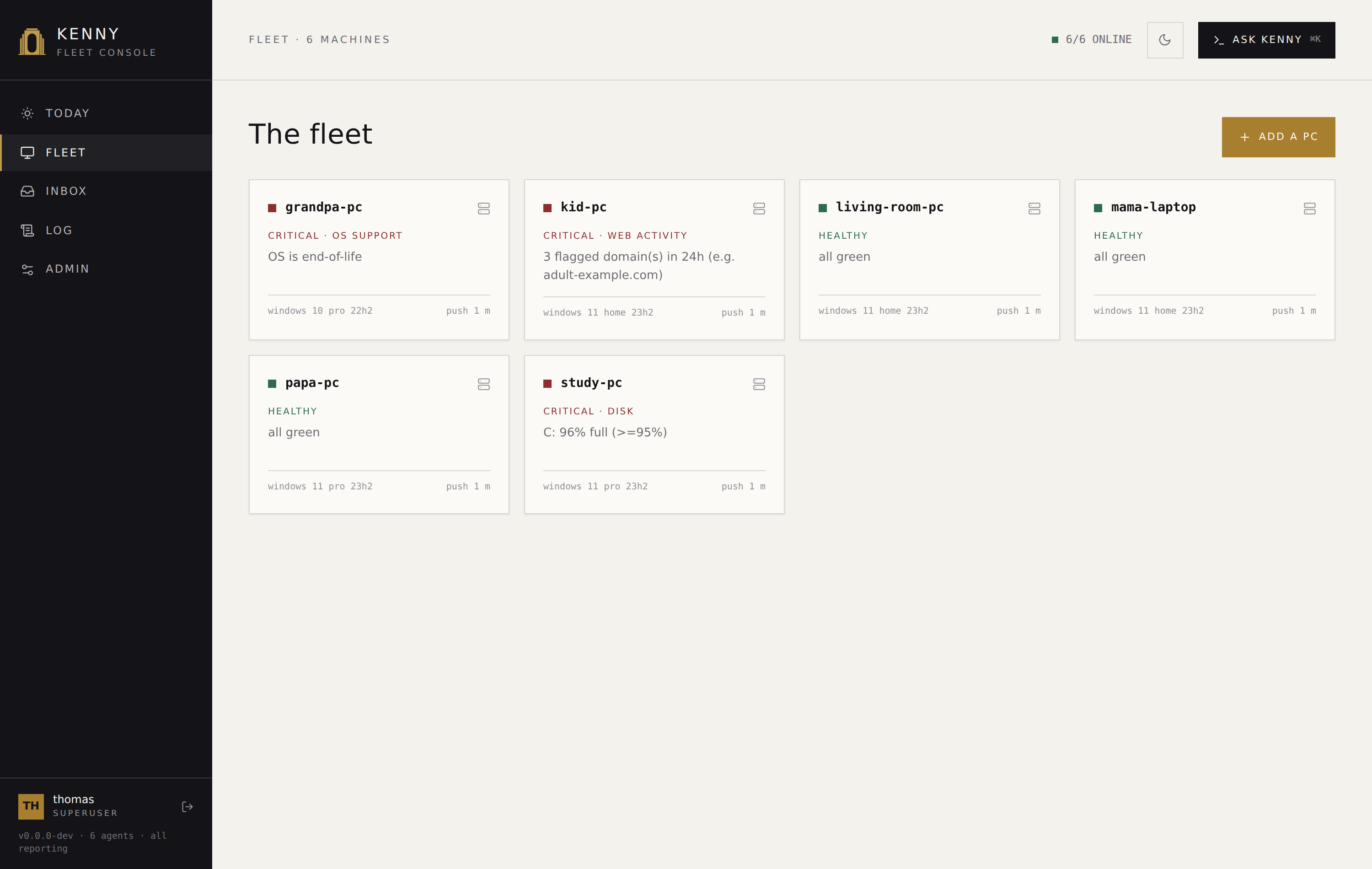
A card grid, one card per PC: a status dot, the hostname, a severity label (e.g.
CRITICAL · DISK, WARNING · SECURITY, or HEALTHY), a one-line summary (the worst
section's reason, or "all quiet" plus a notable stat), the OS, a 7-day availability
strip (one cell per hour: green when the PC was reachable all hour, red when it was not,
amber when it dropped out within the hour, grey when the server itself was down; hover for
the percentage), and the time of its last telemetry
push. Cards are sorted worst-first. Click a card to open the host
page — Fleet itself never shows a second pane or an inline detail; the
whole page is the grid.
If no installer binary is available on the server yet, a banner explains why and offers retry GitHub fetch to any operator (see Auto-fetch from GitHub).
Add a PC
Add a PC opens a three-step modal wizard:
- Name the machine — the agent id: lowercase, no spaces. It appears everywhere this PC is shown afterward.
- Operating system — Windows or Linux. Where the server has published more
than one binary for that OS, a processor architecture picker appears alongside it,
listing only the architectures a binary is actually staged for
(
GET /api/agent-binary'stargets). Leaving it on detect on the machine keeps the Linux script's ownuname -mdetection, which is the right answer when nobody knows better. If nothing is staged for the chosen OS the step says so, and the download in step 3 is disabled rather than sending you to an error page. - Hand it over — either download installer (a ZIP with the agent binary, a
pre-filled
setup.bat, and a freshly minted token — for Windows; the Linux path produces the one-line install command described in Installing the agent on Linux), or share a one-time link: a single-use, 24-hour-expiring URL the person at the PC opens without your login (POST /api/agents/share-link). A Linux share link comes with itscurl … | sudo shcommand next to the URL — that command, not the URL on its own, is what gets handed over.
See Adding & updating PCs for the full onboarding and update flows, and the User guide for a walkthrough with sequence diagrams.
The host page
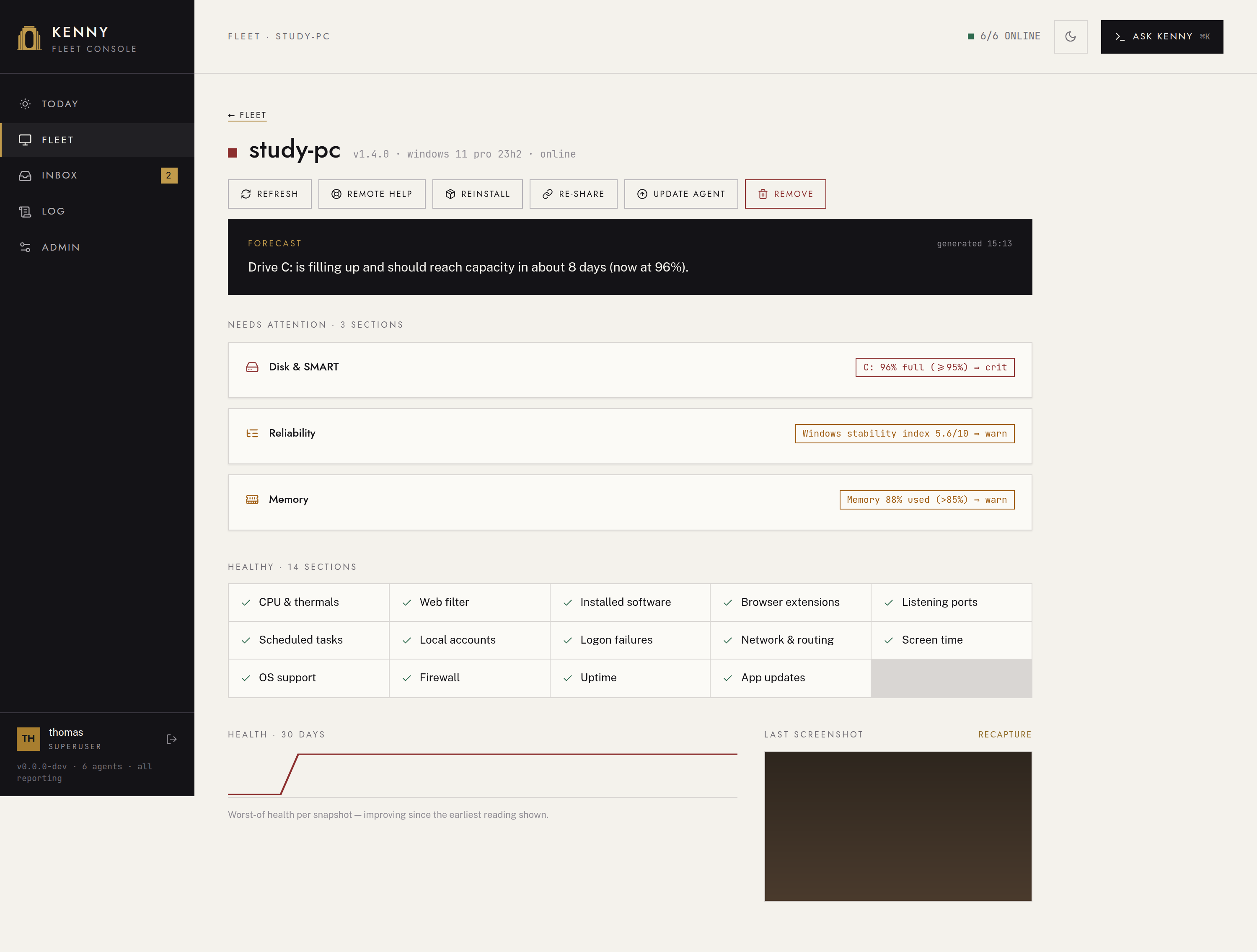
Clicking a card on Fleet opens that PC's own full page (#/fleet/{host}) — not a modal,
not a side panel. Everything the old three-pane console could do lives here.
Header & action row
The header line shows the status dot, hostname, agent id, agent version, OS, and online/offline. Below it, one row of actions:
- Refresh — force a fresh telemetry collect.
- Remote help — open Quick Assist on the PC.
- Reinstall — rebuild this PC's installer, rotating its token.
- Re-share — mint a fresh one-time share link for this PC.
- Update agent — push a self-update from this PC's desired release channel. The channel itself is set per agent under Admin → Updates, not on the host page — see Dev channel.
- Remove (operator/superuser only) — takes the host out of inventory: purges its
snapshots, events, tokens, keys, web-filter state, and scope assignments. Destructive —
confirms first. A host still pinned via
KENNY_AGENT_TOKENSis refused, since it would just re-appear on the next restart.
A scoped user sees only refresh and remote help on its assigned hosts; the rest need
operator+.
Forecast
A short, plain-English outlook pinned near the top, rendered in an inverted (ink-on-paper) panel: what is likely to need attention on this PC soon, synthesized from the disk-fill, battery and hardware-wear trends and the inventory changes since yesterday — e.g. "Drive C: is filling steadily and should reach capacity in about 16 days — the growth is in Videos, not system files. A reboot has been pending for 9 days; expect update failures if it waits much longer." With AI forecasts on it streams from the model and is marked AI; otherwise the same panel shows a concise deterministic summary of the same signals, unmarked. An AI answer that was cut off, declined by the model or empty ends in an error line rather than standing as the forecast, and is not kept: reopening the host asks again.
Beneath the prose, a Hardware at risk list names each device the long-lived history flags: the device, a plain sentence about what is happening to it ("Samsung SSD 980 PRO has used 91% of its rated write endurance and may reach it in about 4 months") and, for the two projections, how far off. It is absent when nothing is at risk. See Alerting & forecasts.
Availability
A timeline of when the PC was reachable over the last 30 days (switch to 7 D for a closer look), headed by its availability percentage:
- Online (green): the PC's agent was connected to the server.
- Offline (red): the server was running and the PC was not connected. The agent pings every 30 s, so a PC that vanishes without closing its connection turns offline after 90 s.
- Unknown (grey): the server itself was down, or the PC was not enrolled yet. Unknown time does not count against the percentage.
- Approx. (hatched): the stretch before the server started recording connections exactly, reconstructed from telemetry arrival times at roughly 15-minute resolution. A dashed exact since line marks where exact recording begins.
- Reboot ticks mark each boot the PC reported.
Hover (or tap) the band for the state, time range, and duration of any stretch. History
follows the telemetry retention (30 days by default). Claude answers the same question
through the agent_availability tool ("was the kids' PC online last night?").
Posture
Between the problem cards and the healthy checklist, a compact list of standing facts:
sections in the posture tier (ADR-0058)
— an unencrypted system drive, a remote-access port that is open on purpose, updater
services idling, a month of Windows uptime. Each row shows the rule's reason and how long
it has stood (since 31 d), opens the same detail modal as a problem card, and never
counts toward the host's overall status or the fleet's donut.
Needs attention
One card per flagged section: an icon, the rule that fired (e.g. C: 96 % ⇒ crit),
and a one-line summary. Click a card to open that section's detail modal — which the
URL carries (#/fleet/{host}?section={name}), so it can be linked to and shared, and is
what an Inbox or Today row points at:
- Recommendation — for a flagged section, while AI recommendations are on, a short Diagnosis / Action / Urgency advisory. If the issue looks fixable with kenny's tools, a Fix via Ask kenny button opens the Ask kenny overlay scoped to this host with a suggested prompt already in the box — state-changing steps still hit the confirm-gate. A recommendation is kept per warning type and replayed for the same warning elsewhere, except one that was cut off, declined or empty: that one ends in an error and is asked for again next time.
- The section's own structured data as tables and fields — never raw JSON.
Healthy · N sections
Every section that isn't flagged is a compact checklist, not a grid of thirty tiles. Click an entry to open the same kind of section modal, minus the recommendation block — there is nothing to fix. A section a collector can't report on the host's OS (e.g. a Windows-only section on a Linux host) carries no signal and is omitted from both lists; it is still stored and reachable via the API.
Health trend & last screenshot
- Health · 30 days — a sparkline of the PC's worst-of health per day: the last snapshot of each UTC day over the past 30 days, oldest first, each scored as of the day it was collected.
- Last screenshot — the most recent desktop capture, with a recapture button; click the image to enlarge it. Screenshots are captured in the user's session by the tray helper.
Web filter
The section modal for web_activity opens the per-host parental-controls list editor:
flagged domains, observed domains, and the settings that control this PC's filter — the
enforcement level (Off / Log only / Protect, enforcement), keep full browsing
history (history), use adult
blocklist (use_external_adult), block VPN/proxy bypass (use_bypass_protection),
and disable browser DoH (doh_policy) — plus adding/removing custom domains and an
apply now button. See Parental controls for the full model.
Reliability
A custom renderer: a category × day heatmap plus expandable event groups, each row with a
severity badge (benign/notable/serious/unknown), an activity chip saying
whether the pattern is still happening (ACTIVE · 5/7 DAYS, NEW, BURST · 08-30,
ONE-OFF · 09-05, QUIET SINCE · 09-01 — the health rule's own reading, see the
reliability row in telemetry.md), and the
categorizer's plain-language suspected cause alongside the raw sample message. Within
a group, patterns that are still happening sort above louder ones that have gone quiet. Each row has an
icon-only suppress/unsuppress control, and a suppressed pattern carries a distinct
suppressed badge and a dimmed row — visible but out of the health scoring. Below the
breakdown, a panel lists and manages suppression rules: a manual form takes an event id
(required), an optional source, a fleet-wide/this-PC-only scope, and an optional
note. Removing a fleet-wide rule asks for confirmation, since it re-arms the alarm on
every PC. See Alarm suppression and
ADR-0041.
Disk health, hardware errors, GPU and fans
Four sections open a specialized body in the detail modal. Each reads the section's own
telemetry and, where the server has it, the device's long-lived history — a sparkline
captioned with its span in days and the latest value, from the hardware key of
GET /api/agent/{id}/trends — so a number is shown with the direction it is moving. A
server that sends no history leaves the bodies as plain snapshots.
- Disk health (
disk_smart;diskopens the same modal on its volumes first) — the physical disks, one card per disk: model, bus and media type, size, health status,REMOVABLEandPREDICTS FAILUREchips, serial, temperature, power-on time, wear and the uncorrected read/write counters. An NVMe disk adds its health log (critical warning, spare capacity, endurance used, media errors, unsafe shutdowns, error-log entries, data written); a disk that reports SMART attributes adds them, named (reallocated, pending and offline-uncorrectable sectors, command timeouts). A disk whose health log could not be read says so, and a disk paused for a protected game is marked. History: endurance used, spare capacity and each error counter. The volumes and largest directories follow. - Hardware errors — the rule's findings (component chip and symptom), the event
groups behind them (source, count, last seen, active days, sample), the memory
(
edac) and PCIe (aer) counters, and the application-crash summary the instability check uses. A note warns when the event log reaches back less far than the window that was asked for, so a quiet window is not read as a long one. History: corrected, fatal and instability events per day. - GPU — one card per adapter: driver, temperature, utilization, power, fan, PCIe link, chips for the clock-event reasons that are asserted (hardware slowdown, thermal slowdown, power brake), and the ECC, retired-page, row-remap and RAS counters where the driver reports them. History: the PCIe width reached under load, against the card's maximum.
- Fans — one card per fan: the samples of the speed burst with their mean, the commanded duty and the mode. History: RPM per duty band, which is what exposes a fan that slows down at the same setting.
Where a collector could not read part of a section, the body lists its probe errors instead of an empty field. On a Today row, the action link for these sections reads CHECK DISK, CHECK HARDWARE, CHECK GPU and CHECK FAN.
Local accounts
The account governance panel: every account on the machine with its kind (local / Microsoft / work-school), whether it is enabled or an administrator, its sign-in restrictions, and — for operators — buttons to suspend, promote or demote, lock, sign out, and delete. Below it sits the machine password policy, labelled with the fact that it reaches only accounts stored on the machine.
The panel is the same on a Windows PC and on a Linux host: same rows, same badges, same two switches, same five buttons. Where a verb genuinely is not available, it is shown greyed out with the reason rather than hidden — the reason comes from the telemetry rather than from anything the dashboard assumes about the operating system. Actions that would touch the last enabled administrator, or delete a built-in account, are disabled with an explanation — the agent refuses them regardless, so the greying is a courtesy, not the boundary. Every change triggers a fresh telemetry collect, so the panel shows the machine rather than what was requested. See Account governance.
Inbox
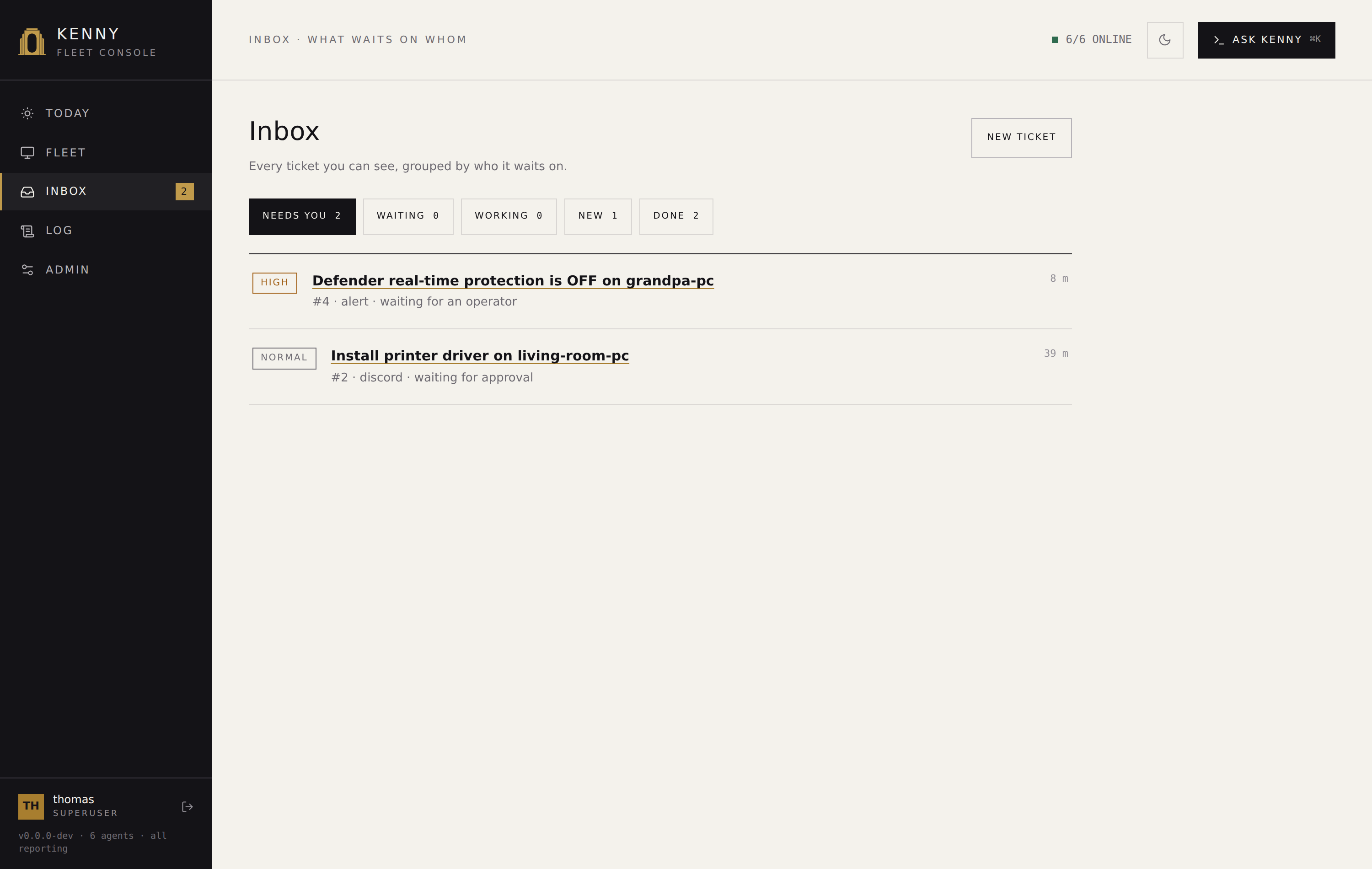
Every row is a ticket, grouped by who the ball is with:
| Group | Meaning |
|---|---|
| NEEDS YOU | A ticket blocked on an approval or on an operator, or an alert-opened ticket nobody has looked at yet. |
| WAITING | A ticket blocked on a reply — from the requester or from telemetry — that isn't yours to unblock yet. |
| WORKING | Kenny (or an operator) is actively working it. |
| NEW | Just opened by a person, and not started. |
| DONE | Resolved; still visible until it auto-closes. |
Each group is a chip with a live count; clicking one filters the list (#/inbox/{group}).
The header's Inbox badge mirrors NEEDS YOU's count.
A row shows the ticket's priority (URGENT, HIGH, NORMAL, LOW), its title, a
one-line meta description — the ticket's ref, where it came from, and what it is waiting
for — and an age. Every row opens ticket detail; no row in this
queue leads anywhere else.
A ticket waiting for an approval says so; answering it is one click further on, in the drawer, beside the frozen call it would run.
A standing critical or warning finding reaches this queue only as the ticket an
auto-ticket rule opened from it. A finding with no ticket — a rule
set to never, or a ticket somebody cancelled — is read where it is derived, on
Fleet and Today. The queue carries cases, not conditions
(ADR-0059).
New ticket
New ticket opens a modal: pick the target PC, describe what kenny should do, and optionally check start working immediately (read-only steps run right away; anything state-changing still waits for approval). This lands exactly like a Discord-opened ticket except it has no thread attached — see Tickets & the Discord bot for what a ticket is and its lifecycle.
Ticket detail
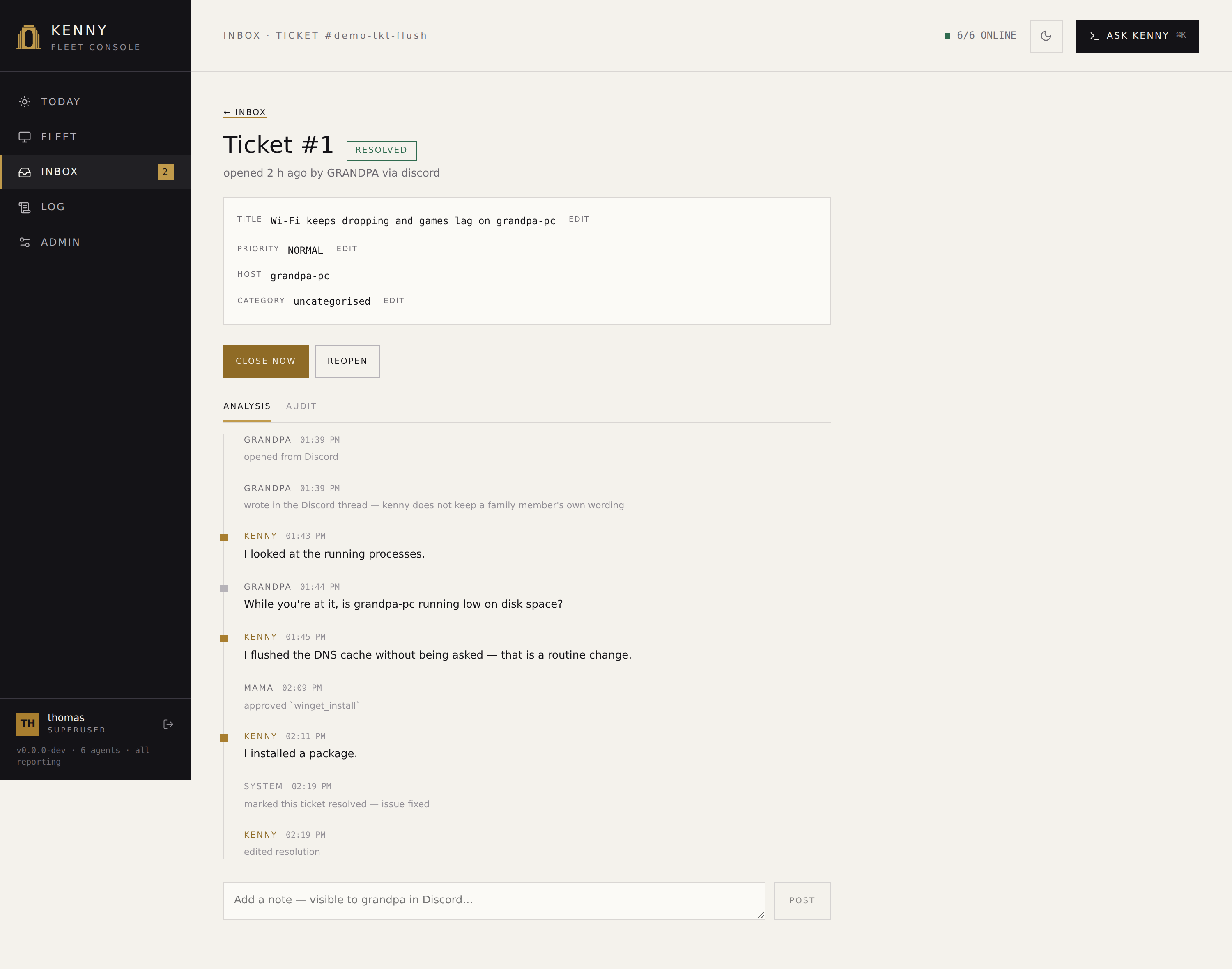
Reached by clicking a row in the Inbox, or #/inbox/ticket/{id} directly — this is the
landing page every "see the dashboard" link kenny posts into Discord goes to, so it works
from a cold load, not just from clicking through the queue. It shows:
- The metadata block — number, origin (
discord/dashboard/alert), priority and category (editable dropdowns, sourced fromGET /api/tickets/vocabulary), requester (shown by username, not a bare id), target PC — fixed when the ticket is opened — and the created/updated timestamps. - Kenny's running summary, and the resolution once one is set.
- For a ticket an alert opened: what fired and whether it still holds. Current state is the live verdict of the sections the ticket is about — re-evaluated from the newest telemetry snapshot, so it answers the question standing between you and closing the case: is the problem still there? A section that recovered while the ticket stayed open says so. Alert history is the alert that opened the ticket plus every later recurrence that was deduplicated onto it. Clicking either expands it in place — nothing here navigates away from the ticket. The history is bounded by event retention (~30 days) while tickets are not, so an old ticket can show current state with no history left; that is expected, not an error.
- A RESOLVED BY KENNY chip next to the status, when an unprompted investigation — not a person — put the ticket in the state it is in. It is a chip and not a footnote because it changes how everything below it should be read. Disagreeing with it needs nothing special: the ordinary reopen button is right there, and the chip disappears the moment somebody uses it, because it describes the ticket's state now and not one it used to be in.
- A triage verdict in the analysis tab, where an investigation left one. This is the
one entry that is a finding rather than a line of history, so it gets a frame: the verdict
itself (NO PROBLEM FOUND, KNOWN AND HARMLESS, ALREADY OVER, NEEDS ACTION,
UNCLEAR — coloured by whether it needs you, not by which of the five it is), what
kenny concluded in a sentence, and what it checked to conclude that. The evidence sits
next to the verdict rather than behind a click, because it is the reason to believe it.
The card says what was found about the machine and nothing about kenny's own machinery:
whether the server is configured to close a ticket on a verdict like this one
(
KENNY_TRIAGE_RESOLVE) is answered by the ticket's state in the header, and the trail records the rest. Where the verdict proposes muting a recurring event pattern, the row carries a one-click MUTE ON THIS PC button that creates the suppression rule for that host. -
What happened, in two tabs over the same rows.
ANALYSIS (the default) is the ticket read as a story, oldest first: findings, what people wrote, what kenny found or changed, and the moves somebody decided. Each line is already a sentence — a person's own words as plain escaped text, and everything kenny did as plain prose written from the trail: "I looked at the agent's health, the event log (System, Setup, Application) and disk usage." A change kenny made without anyone deciding says so — "I flushed the DNS cache without being asked — that is a routine change" — because that is the one class of thing nobody was consulted about. What failed or was refused stays too, since it explains a gap. Lifecycle moves are kept but set quietly, as time anchors. A Discord-origin family message still shows only its existing one-line summary — no verbatim text is stored for it.
What kenny said is not here. A conversation belongs to the surface it was had on — the Ask kenny drawer, or the Discord thread — and the ticket keeps the outcome instead: at the end of a turn that found something out, changed something, or reached a conclusion, kenny writes one or two sentences onto the ticket saying what is now true. That line is rendered through the same markdown renderer Ask kenny uses, and it is the one line on this tab kenny composed rather than the server (ADR-0061). The replies themselves are still stored, and the AUDIT tab shows them verbatim.
AUDIT is the trail itself: every row the server stores, in order, with the arguments each call ran with and the row's own id. It is what
#-numbered evidence means, and it is where machine bookkeeping lives — thework startedtransition, thewaiting for a replyblock, a stall reminder, the verdict tool's own calls. Nothing is dropped here and nothing is parsed: an audit shows what is stored. Both tabs answer to the same ownership check; the analysis tab is a reading, never a permission. -
A held gate shows on the ticket as one line — what kenny is waiting to run, on which PC — and a button that opens the Ask kenny drawer, where the decision is made. Nothing on the ticket page decides it: every exchange with kenny, the gate included, happens in the drawer, so there is one place in the console where kenny asks and one place where it is answered. What the decision must not lose is unchanged — the card in the drawer shows the exact tool and its frozen arguments, and deciding beside a bare title in a list is still refused (ADR-0059).
The ticket's gate is dismissible; the fleet copilot's is not. Closing the drawer on a
ticket gate is a legitimate "not yet": the gate is durable, the ticket goes on saying it
is waiting, and a different operator may answer it. The copilot's own confirm-gate is a
modal whose only exits are CONFIRM & RUN and CANCEL, because nothing there is durable —
that asymmetry is on purpose, so closing a ticket's gate can never be confused with
denying a fleet-chat action. Answering a gate in the drawer streams the work it releases
straight back into the same conversation, rather than leaving the transcript frozen at
the question.
- A note field, for an operator+, is the page's only composer. A note is something you
write onto a ticket; asking kenny is a conversation about one, and it belongs in the
drawer with every other conversation — which is why there is no second "ask about this
ticket" button here: ⌘K on a ticket opens the drawer already bound to it. Enter follows
the same Enter to send preference here as everywhere else.
In the drawer, a ticket is a second context rather than a second chat: the scope chip
reads ticket #76 · linus-pc, there is no conversation history to browse because the
ticket's own timeline is its history, and the turn runs against the ticket's frozen PC
under the ticket's gate. There is no host to leave: the target PC is the ticket's and
nothing said in the conversation can move it.
The note keeps its operator+ gating; chatting does not — any user may talk about their
own ticket the same way they always could over Discord. Every turn opens with kenny
already briefed on the ticket: its title, state, priority and category, the target
machine's current health, who it belongs to and who is working it, and a digest of the
trail (notes, state moves, consent/approval decisions) — so kenny picks up where the
ticket actually is instead of starting from nothing. Sending streams
POST /api/tickets/{id}/chat/stream through the same SSE event vocabulary the drawer
already renders, and the durable record of the turn — your message and kenny's reply —
lands on the ticket's timeline behind it. A checkbox — "Also send to the Discord
thread" — appears only when the ticket has a bound thread, defaults off, and applies
the same redaction a Discord-bound reply has always gone through. The composer is
disabled with a visible reason when it can't be used right now: "The AI assistant is not
configured on this server.", "This ticket has no target machine.", or, while a gate is
open, "Waiting on the decision on this ticket…"
- Every action button below is rendered from the ticket's own allowed_transitions/
can_unblock — an option only ever appears if the API would actually accept it for the
account looking at it. There are at most three, and usually two: the one move that
carries the ticket onward, whatever its current situation asks of a person, and the exit.
- Mark resolved / Start work / Close now — the forward move, whichever it is
from where the ticket stands. Resolving works from new or in_progress; it denies a
pending approval rather than leaving it open. Closing is available once resolved, for
when you would rather not wait out the auto-close window.
- Reopen — while still resolved, move it back to in_progress.
- Cancel ticket — withdraw it. Available to the ticket's own requester as well as an
operator+, from new or in_progress.
- Got an answer / Pick this up — clear the block kenny put the ticket under, when
the answer reached you some other way or you are taking over an escalated ticket. A
ticket waiting on an approval has no such button: that wait ends with the decision,
made in the drawer beside the frozen call, or with the gate's own timeout.
Nothing here sets a block, claims a ticket or moves it to another PC — see the ticket lifecycle for why.
Resolving, cancelling or closing a ticket here — and the sweeper doing the same, whether auto-closing a resolved ticket or dropping one nobody worked — also posts a short message into the ticket's Discord thread (if it has one) and archives it at a terminal state.
The New ticket modal (opened from Inbox) includes a host picker, so a ticket
opened from the dashboard can start with a real target machine — without one, the
composer's "Ask kenny" side has nothing to run against and stays disabled. See
itsm.md for what the composer's messages
record, and ADR-0050 for why this is a
second, equally-gated chat surface rather than an extension of Ask kenny.
Log
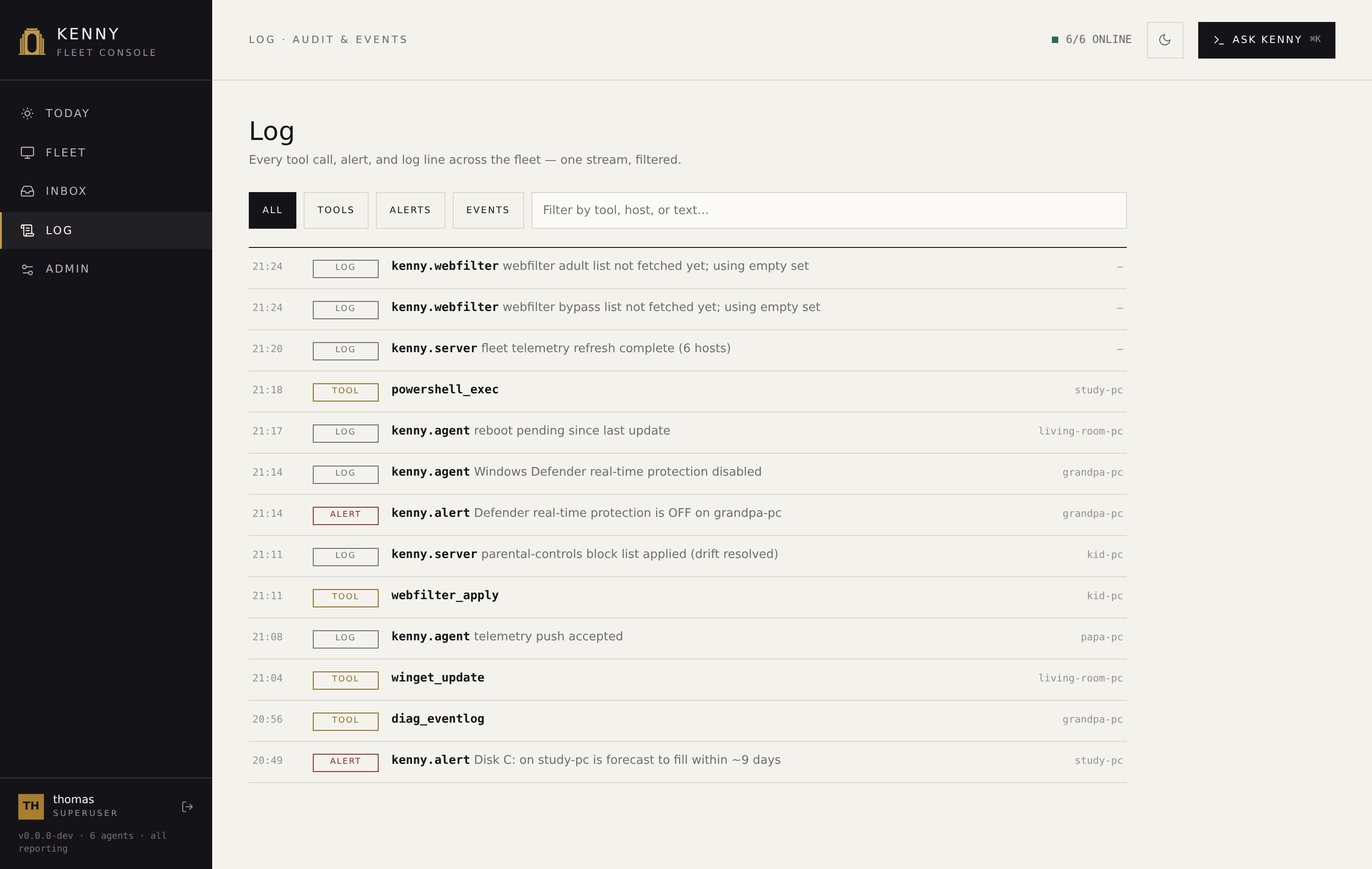
Every tool call, alert, and server/agent log line across the fleet, unified into one
stream — replacing the old separate audit log and events feed. Filter chips —
ALL / TOOLS / ALERTS / EVENTS — narrow the kind, and a text filter searches by tool,
host, or message. Filtering and paging happen server-side (GET
/api/log?kind=&q=&cursor=), so the list stays fast regardless of fleet history size. Each
row shows time, a tag, what happened plus a message, and the host it concerns. This is
where alerts land as an audit trail, and where the
tool-call audit is read.
Admin
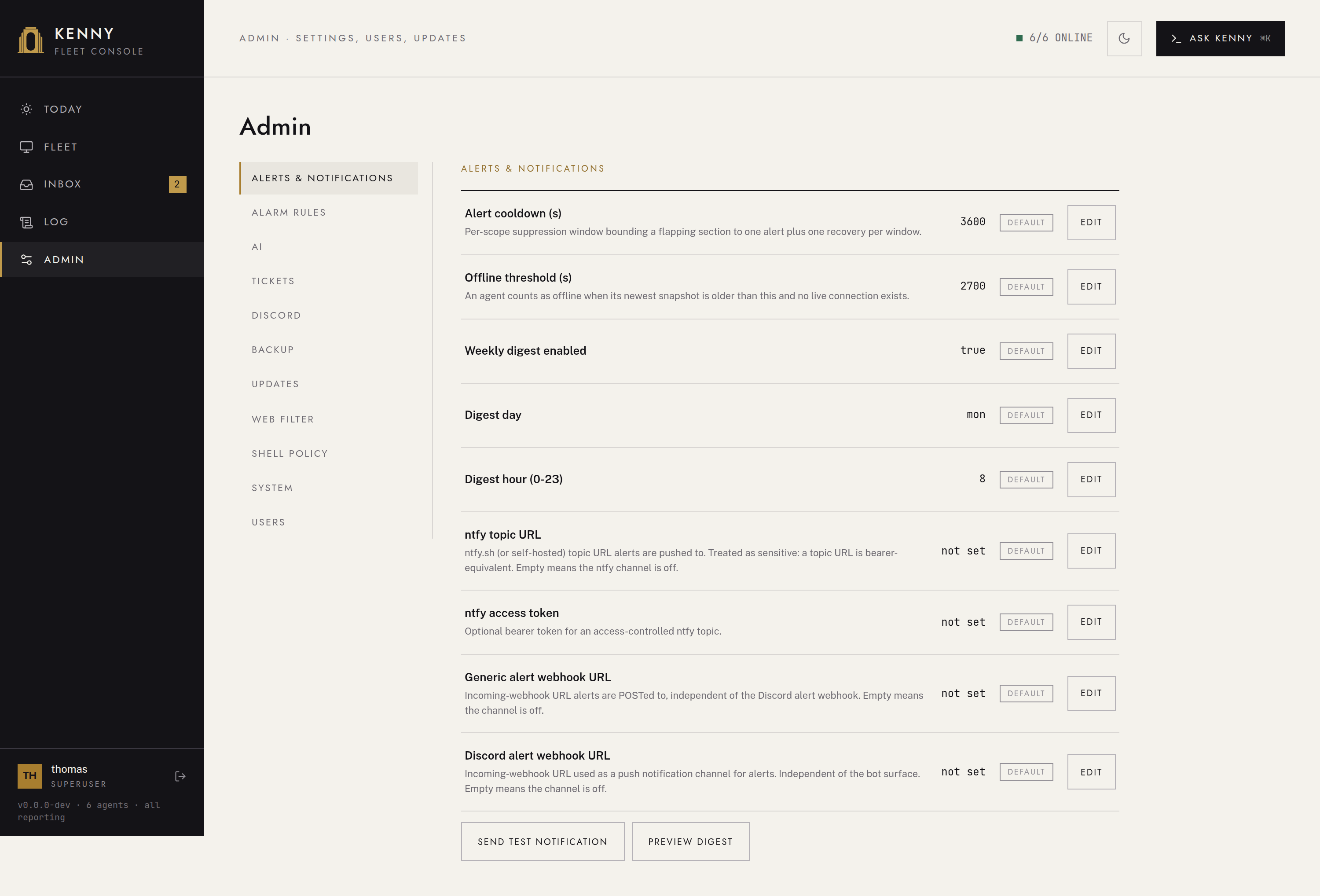
(#/admin/{section} — a superuser sees every section; an operator sees only
Updates and Alarm rules)
A left section nav picks one section at a time: Alerts & notifications, Alarm
rules, AI, Tickets, Discord, Backup, Updates, Web filter,
Shell policy, System, and Users. Every section except Alarm rules and Users is
a group of config.py's settings catalog, in the catalog's order; Alarm rules sits right
after the alerts it governs.
Everything Admin shows can be changed there. GET /api/settings lists only the
settings the dashboard can write. Bootstrap, network, auth and secret settings, and the
cadence of the background loops, are set in the server environment and never appear in
the dashboard — see Environment variables. Beside its
settings, a section shows the state they act on: the Discord connection, the backup list,
the update rollout.
Every setting row shows its label, its current value, and a source badge —
DEFAULT, ENV, or CUSTOM — telling you where that value came from. A value saved here
is CUSTOM and wins over the environment; reset to default drops it, so the setting
falls back to the environment or the built-in default. A secret shows only as set /
not set and can be replaced but never read back. Settings apply immediately, except
Discord bot enabled, which takes effect on the next server restart: its editor says so,
and the row carries a RESTART PENDING chip while a stored change waits for one.
Alerts & notifications
The alert cooldown and offline threshold, the weekly-digest schedule, and the push channels — ntfy topic and token, generic webhook, Discord webhook — see Alerting & digests. Two buttons check them without waiting for a real alert:
- Send test notification (
POST /api/notify/test) sends one test message through every configured channel directly — not through the alert engine, so it opens no ticket and touches no cooldown — and lists each channel asdeliveredorfailed · <reason>. With no channel configured, it says so. - Preview digest (
GET /api/digest/preview) renders the weekly digest as it would go out now, without sending it. The panel shows the plain-text version that ntfy and the webhook receive; the response also carriesmarkdown, the linked rendering Discord gets.
Alarm rules
(operator+ — like Updates, this section has no settings-catalog group behind it, so it's the same for every operator+ role)
The two fleet policies on what an alarm leads to.
Auto-ticket rules. Which alerts open a ticket automatically is operator policy, not a
fixed rule — see
Alerting → which events open a ticket is configurable.
By default every genuine alert opens a ticket and nothing else does; each rule here either
narrows that (never on a noisy offline PC) or widens it (open_all on an inventory
change). A rule names an event type, an optional section and host, and a decision (open
/ open if crit / never); rules are most-specific-wins. Removing a fleet-wide rule asks
for confirmation, since it changes behaviour on every PC.
Reliability suppressions. Reliability event patterns that never count against a host's health, every rule in one list — fleet-wide and per host — each with Remove. Removing a fleet-wide rule asks for confirmation, since it re-arms the alarm on every PC. Add suppression takes an event id, an optional source (empty matches any source), an optional host (empty means fleet-wide), and an optional note. The host page's Reliability section suppresses a pattern from the event itself; see Alarm suppression and ADR-0041.
AI
A master switch, the Anthropic API key, an optional AI gateway, one switch per AI feature, the models, and the assistant's limits (ADR-0066, ADR-0068):
- AI features — the master switch at the top of the section, on by default. One click turns every AI feature off at once, whatever its own switch says; each switch keeps its setting, so turning AI back on restores exactly what was running. The key test still works while it is off.
- Anthropic API key — a key saved here wins over
ANTHROPIC_API_KEYin the environment. It is never shown back, and it is not included in backups: after a restore, set it again (or let the environment supply it). Test connection sends one single-token message the way every fast-model feature does — same model id and request shape — and shows the answer if it fails, or that the model declined it. The line above the settings says where the key comes from, whether calls go through a gateway, and which features are running. - AI gateway URL and AI gateway headers — route every model call through an AI gateway instead of straight to the Anthropic API; see Setup → AI gateway. The headers are never shown back and not included in backups. Behind a gateway that holds the provider key, the key can stay empty.
- Ask kenny, Recommendations, Forecast prose, Reliability event classification, Ticket assistant, Weekly digest summary — one switch each, all on by default. A feature runs only with AI on, a key or gateway set and its own switch on; while it cannot run, the dashboard does not show it. The Ask kenny button and ⌘K disappear, a section modal has no recommendation block, the forecast shows its plain computed summary (only AI-written prose is marked AI), new reliability events stay unclassified, the weekly digest goes out without its In short line, and a ticket's chat is left to operators: on a ticket page the Ask kenny button and the pointer to a pending decision disappear (in Discord, kenny says so in the thread). On a ticket, the Ask kenny button follows the ticket assistant's switch, not Ask kenny's.
- Chat model — the Anthropic model id for Ask kenny, the ticket assistant, and triage.
- Fast model — the model id for recommendations, forecast prose and reliability-event
classification (default
claude-haiku-5-5). - Discord model — the model for Discord-driven turns; empty uses the chat model.
- Investigate new tickets automatically (on by default) — kenny runs one read-only check on the PC and writes the finding into the ticket before you open it.
- Let triage resolve a ticket (off by default) — with it on, an alert-opened ticket
whose investigation reached a closing verdict and actually ran a check is set to
resolved, still inside its normal reopen window. - Triage steps per ticket — how many model round-trips one investigation may take.
- Assistant turns per ticket — the cap on the turns the ticket assistant takes on one ticket, on the dashboard and in Discord alike, before it is handed to an operator.
See Tickets → kenny looks first for triage.
Tickets
The lifetimes the ticket sweeper enforces: how long an approval or consent waits for a
decision, the reopen window before a resolved ticket is auto-closed, when a stalled ticket
gets a reminder and when it is escalated to an operator, when an untouched ticket is given
up, and how long a closed ticket keeps its raw working transcript. 0 switches off the
timer it belongs to. See
Tickets → the lifecycle.
Discord
The settings first: Discord bot enabled (applies on the next restart), the allowed
guild IDs (empty means deny everywhere), the support and operator channel IDs,
use private threads, and the per-user requests per hour. Below them, the state
they act on: a status card (connected or not, the model in use, the guild count, a
startup error, and a warning when the Message Content intent is missing), the pending
claims table for enrollment path A (/link in Discord), the linked identities (with
an unlink button), and link manually for enrollment path B, with a guild-member picker.
See Enrollment: linking a Discord account.
Without a bot token (KENNY_DISCORD_BOT_TOKEN, set in the environment) the section shows
the settings and a No bot token note in place of the rest.
Backup
kenny persists everything — telemetry, chat history, accounts, tokens, settings — in one
SQLite file on the /data volume. Syncing that live file with an external tool (e.g.
Syncthing) causes lock contention, because the sync tool watches and hashes a file the
server is concurrently writing to. This section is kenny's own answer: it produces
finished, static snapshot files that are safe to hand to any external sync/backup tool,
and gives an operator a way to trigger, inspect, and restore them without touching the
host filesystem by hand. See ADR-0039
for the full rationale.
- Settings — backup interval (
0pauses automatic backups; a change retimes the running loop) and backup retention (the newest N kept per target). The local backups directory itself is set in the environment (KENNY_BACKUP_DIR, by default abackups/directory next to the database). Point your sync tool at that directory, never atkenny.sqliteitself. - Create backup now — triggers an out-of-schedule snapshot immediately (
VACUUM INTO, so it never blocks concurrent reads/writes). - Backup list — every known snapshot, newest first: name, timestamp, size, trigger (scheduled vs. manual), and which target(s) hold a copy. Per row: Download, Verify (re-checks integrity on demand and shows the result inline), Restore (stages the chosen backup and restarts the server to apply it — a confirmation dialog spells this out before you can proceed, since restore is the most destructive action in the product), and Delete.
- Remote targets — optional, operator-configured push destinations in addition to the always-on local copy: HTTP (POST to a simple API), SCP/SFTP, or FTP/FTPS. Add, edit, enable/disable, test the connection, or remove a target; credential fields are write-only — they show as set or not set, never echoed back.
Updates
(operator+ — one of the two sections an operator's Admin nav shows, alongside Alarm rules)
kenny checks for newer agent releases (GitHub Releases) and a newer server image (GHCR, read-only) on a schedule and shows both here — see ADR-0040. Detection never applies anything by itself; every rollout is an explicit operator action.
- Server — the running image ref, the latest known tag, and when a newer one exists: a
digest-pinned
docker pull …@sha256:… && docker compose up -dfor you to run. kenny cannot replace its own running container, so this stays a shown command rather than an automated pull. - Agent rollout — the latest known agent version and when it was checked, auto-apply on connect with a turn on / turn off button (superuser only; off by default, and it never starts a rollout by itself — a campaign must still be approved), and a check now button.
- Rollout campaign — with no active campaign, approve rollout pins the latest
known agent version into a new campaign. Once approved, the campaign shows its pinned
version and whether on-connect auto-apply is on, plus:
- Apply to online agents now — pushes the pinned version to every currently-online, eligible agent immediately.
- Suspend — stops both the on-connect push and apply now without discarding anything: the pinned artifact and every agent's attempt/held bookkeeping stay exactly as they were. A suspended campaign drops off this card into campaign history below, with a resume button on its row that reactivates the same campaign exactly where it left off. This is the one thing suspend/resume can do that revoking and re-approving cannot: a fresh campaign gets a fresh id, and per-agent attempt tracking is keyed to the campaign id — recreating would silently hand a previously held agent (one that exhausted its retry budget, often because it's crash-looping) a brand new budget. Suspending and later resuming the same campaign keeps that agent held.
- Revoke — stops future pushes under this campaign for good; an update already in flight to an agent cannot be recalled, and a revoked campaign cannot be resumed.
- A per-agent table: current version, os/arch, channel (built / desired) with a selector that sets the desired one, online/offline, and rollout status — the pinned version once updated, queued or updating while in flight, held after repeated refusal (e.g. the agent's local remote-control switch is off), not eligible for an (os, arch, channel) the release doesn't cover, and for a disconnected agent on connect when auto-apply-on-connect is on, offline when it is off and only apply now will reach it.
A campaign always pins one exact version at approval time: a later check finding something newer never changes what an already-approved campaign pushes — it just becomes a new, separately-approvable candidate.
Alongside the stable cards, the section shows a latest dev row for the server and the agent and a second, independent rollout campaign (dev) — a stable and a dev campaign can be active at the same time, since they target different agents. See Dev channel for how an agent moves onto the dev stream.
A row below the rollout card sets the campaign max age (superuser only): an approved campaign auto-expires after this long even if not every agent reached the pinned version (default 14 days). How often kenny checks for updates, and which server image it polls, are set in the environment.
Web filter
The sources of the external block lists and the cap on what is pushed: the adult, bypass/VPN, gambling, and piracy blocklist URLs, each applied on the next list refresh, and max block domains — the budget the capped categories share per agent (hard cap 10000). How often the lists are refreshed is set in the environment. See Parental controls → External lists.
Filtering itself is per host: turn it on, pick categories, and edit domains in the host's own Web filter section on its page.
Shell policy
What powershell_exec and shell_exec may run across the whole fleet
(ADR-0064). Three things on one page:
- The mode —
unrestricted(the default),allowlist, oroff. - The allow rules, used only in
allowlistmode. A command must match one in full: a rule ofuname -adoes not admituname -a; rm -rf /. An empty list under this mode blocks every shell call on every host, and the page says so rather than letting you find out from a refusal. - The shipped defaults — the allow rules a new server starts with
(
docs/policy/shell_allow_defaults.json): read-only diagnostics for both shells plus restarting a named service, and nothing a dedicated tool with its own guard already covers, such as reading files. Each rule is taggedDEFAULTorCHANGEDagainst them, the page says how far the list has drifted, and Reset to defaults replaces the whole list with them after a confirmation. An existing database that already ranallowlistwith an empty list is not seeded behind the operator's back; it gets the button instead. - The deny rules — the operator's own, which you can add and remove here, and the built-in catalog below them, read-only because every agent compiles it in. Deny is checked first in every mode, so an allow rule can never lift one.
Superuser-only, and deliberately: an account that can run a shell command must not also be able to widen what may be run.
System
Log level (applied immediately), snapshot retention — how long raw telemetry snapshots are kept — and hardware history retention — how long the compact per-device daily hardware metrics behind the hardware forecasts are kept (730 days by default, at least 30). Snapshots dominate the database's size; lowering either retention prunes on the next alert cycle (about a minute), and frees space for reuse without shrinking the database file.
Users
(superuser only — the whole section is hidden otherwise)
See Accounts & roles above.
Profile
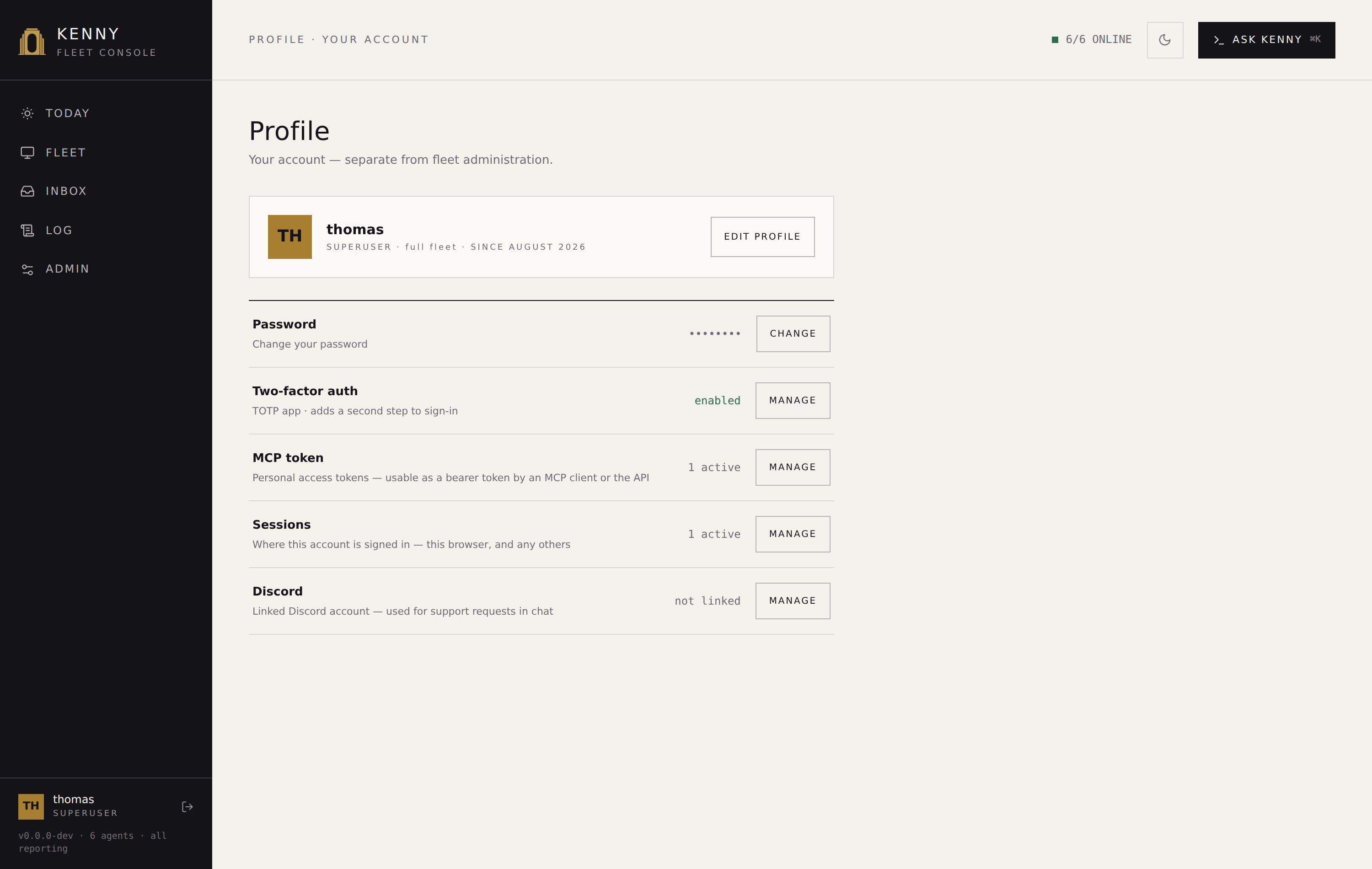
#/profile — your account, reached from the
account block in the sidebar, not from Admin. It lets you:
- Change your name/email and pick an avatar from the dog-breed grid.
- Change your password.
- Enable/disable two-factor (TOTP) — scan the shown
otpauth://secret into an authenticator, then confirm a code to enable; disabling asks for your password. - Mint/revoke personal access tokens — a new token's value is shown exactly once, in a read-only copy field, with a plain statement that it will not be shown again. Claude Desktop normally uses the OAuth flow instead (see Accounts & roles); a PAT is for scripts and other clients that can't do OAuth.
- Sessions — a modal listing every browser session on your account (device/user-agent,
IP, when it signed in, when it expires, which one is this one), with sign out other
sessions: ends every other session and revokes any OAuth grant tied to your account,
while this browser stays signed in on a freshly issued session. It does not touch
personal access tokens — a PAT is a separate credential (how Claude Desktop and other MCP
clients reach
/mcp), and revoking it is a deliberate, separate action from the PAT row above, not a side effect of ending sessions. - Discord — a modal showing your own Discord binding(s) (the raw account id only — kenny
never stores a display name) with an unlink button. Linking a Discord account is still
not self-service: run
/linkin Discord and have an operator confirm the claim in Admin → Discord (see Enrollment: linking a Discord account). Unlinking only takes privilege away, so it needs no operator step. - Set your theme — persisted per account, independent of the browser you're on.
A legacy shared-token identity (the back-compat KENNY_OPERATOR_TOKEN superuser) has no
editable account: Profile, PATs, and 2FA are all hidden for it.
Ask kenny
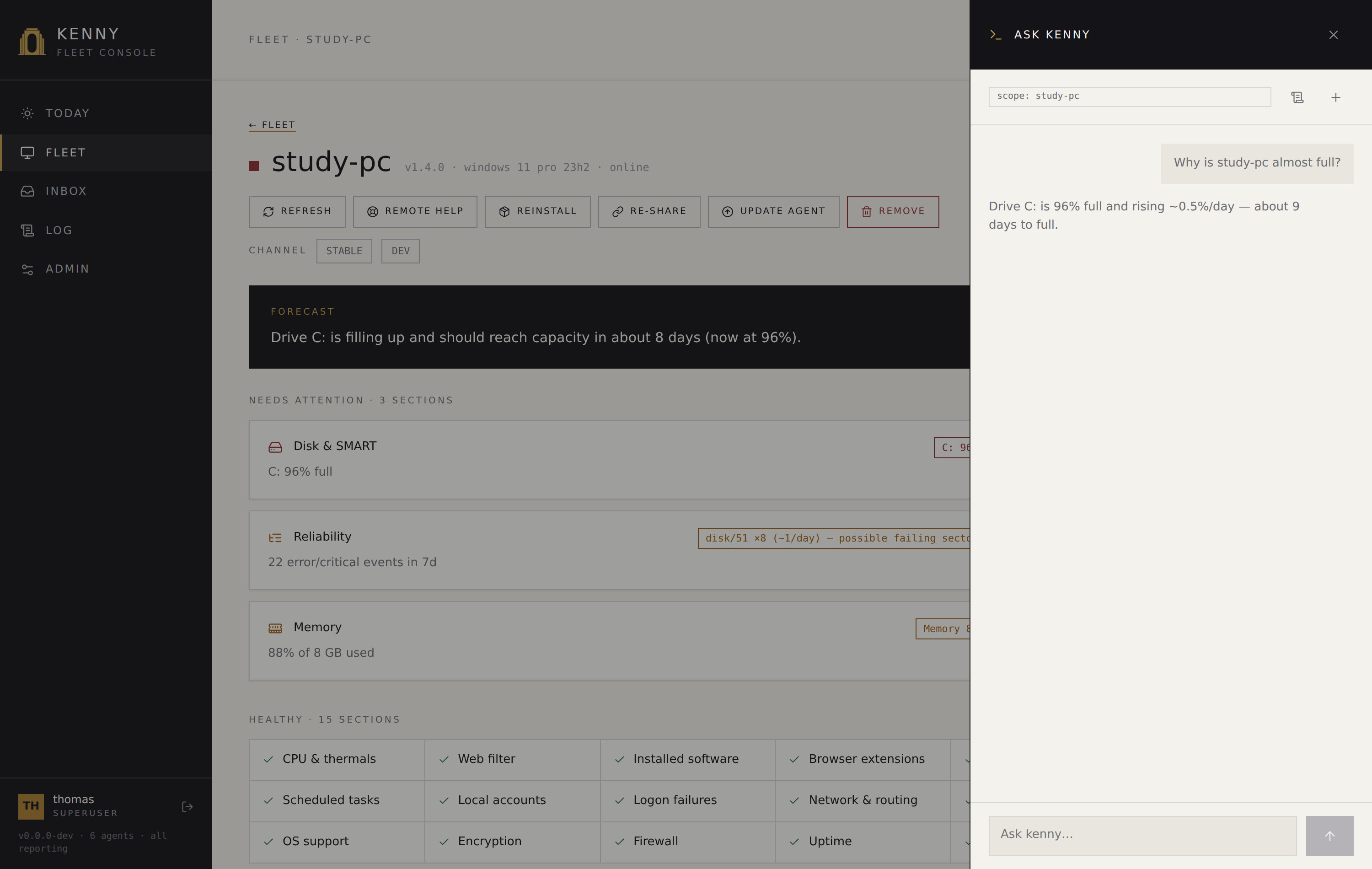
The server-hosted Claude chat, opened from anywhere with ⌘K (Ctrl+K), the header button, or the mobile nav. No local client needed — ask in plain language and Claude picks and runs kenny's tools. It is a global overlay drawer, not a page: opening it does not navigate away from wherever you were.
- Scope chip — shows whether the chat is scoped to a host or the whole fleet. Opening the overlay from a host page scopes it to that host automatically; opening it from anywhere else scopes it to the fleet. The scope is sent on every turn — even an empty one — so the server's session never silently points at a stale host.
- new starts a fresh conversation; history browses, resumes, or deletes saved ones.
- Transcript — user and assistant bubbles (assistant text is rendered markdown),
tool-run chips (an
auto-runtag for read-only calls), inline screenshots, and the confirm-gate. - Confirm-gate — read-only tools run automatically; any state-changing tool pauses in a card showing the exact tool + frozen arguments, with confirm & run / cancel. The composer is locked until you resolve it. This gate is not dismissible — unlike the ticket-scoped gate, there is no "decide later" here, so closing the overlay never reads as a decision. See Tool reference.
- A call that is still running — a tool can take minutes: a PowerShell script runs
until it finishes or hits its own
timeout_s. The moment one starts, its chip appears with a spinner and a seconds counter, and stays there until the result replaces it — a confirmed call readspowershell_exec· confirmed · running… 47s, so the wait is visibly the tool working rather than a decision still outstanding. The composer stays locked while a turn is in flight; stop ends the turn, and a call whose result never arrived says no result rather than claiming one. - Draft ticket card — ask kenny to make a ticket out of the conversation and it fills in the same fields the Inbox's New ticket form uses, from what the conversation established. Nothing is filed until you press OPEN TICKET, and what is filed is what is in the fields — edit the title, the description or the PC first if kenny got them wrong, or DISCARD it. The opened ticket links straight from the card, and records separately which read-only checks had already run here. Kenny can propose a ticket and look for one already open; it cannot move one — that happens on the ticket itself. See ITSM: where a ticket comes from.
- Composer — type and send; while a turn streams the button becomes stop. Suggestion chips ("Why is this PC flagged?", "Free up disk space", "Update all packages") pre-fill the box. A section modal's Fix via Ask kenny button opens the overlay pre-filled with a suggested prompt, already scoped to that host.
On desktop the overlay slides in from the right over a backdrop; on mobile it takes the full width. Escape or a backdrop click closes it — closing never cancels a call in flight, it only hides the drawer.
Adding & updating PCs
- Add a PC (on Fleet) onboards a new machine through the
three-step wizard. On Windows, the hand-over step gives you a
downloadable ZIP (the agent binary + a pre-filled
setup.bat+ a freshly minted token) or a one-time, expiring share link. On Linux, both paths produce the one-line install command (curl -fsSL … | sudo sh) — a nonce-gated, single-use script carrying the same freshly minted one-time enrollment token (ADR-0034). - On an existing PC, the host page's reinstall / re-share re-provision that agent id (rotating its token, so the old install stops reporting), and update agent pushes a server-triggered self-update. Update works on both Windows and Linux: the agent downloads the new binary, verifies its SHA-256, swaps it in place, and restarts its service (systemd on Linux, the Windows service on Windows).
- Remove (operator/superuser only, on the host page) takes a host out of inventory —
see Header & action row. The provisioning/reinstall actions are
gated to operator+ too; a scoped
usersees only refresh and remote help on its assigned hosts.
The full onboarding and update flows (with sequence diagrams) are in the User guide.
Server and agent versions
GET /api/about reports the server version, the protocol version and the
repository, GET /api/changelog proxies the project's GitHub releases
(server-side, cached five minutes, stable releases only), and
GET /api/agent-binary reports which agent installers are staged. All three sit
at the authenticated floor, so every role reaches them.
The sidebar's fleet line carries the running server version —
v2.2.0 · 6 agents · all reporting — and clicking it opens About kenny:
the server version, protocol version, staged agent version, and a link
to the repository, plus a live changelog filtered from the project's GitHub
Releases. The version dropdown starts on the release matching the running server
(marked (running)) when there is one, and on all versions otherwise; release
notes render as markdown.
Only /api/about is load-bearing: if GitHub is unreachable or no agent binary is
staged, the dialog still opens and the rest of it still fills in — and says
which it is. A changelog that comes back empty because GitHub could not be read
shows the reason (a rate limit with the time it resets, a refusal in GitHub's own
words, an unreachable host), never "no releases published"; that wording is
reserved for a read that succeeded and found nothing. When a refresh fails but earlier notes are still
cached, they are shown and labelled as cached.
The staged agent version is the binary currently on the server's data volume,
not a live query — so the row also carries why it last stood still: the last
refresh and, if it failed, its reason. That reason survives a server restart.
There is no "switched off" state to report: releases are read anonymously
(ADR-0057), so the
fetch is always attempted and always has an outcome. Because a release stamps the same git
tag into the server and the agent, a staged version behind the running server is
flagged as such (expected 2.2.1 — this binary is from an older release); nothing
is claimed when either side is a dev build, whose versions legitimately differ.
Operators get a FETCH NOW action on the row to retry against GitHub without a
restart; a scoped user sees the explanation without the button.
Because the box hangs off the sidebar, it is reached at desktop width — below 760px the sidebar gives way to the tab bar.
Admin's Updates section covers the rollout in operational detail; where the staged binary comes from is set in the environment (see Enabling agent downloads from the GUI).
Old bookmarks & redirects
Every hash route from before the redesign still resolves — old links, browser bookmarks, and the "see the dashboard" links kenny has already posted into Discord all keep working:
| Old hash | Resolves to |
|---|---|
#/overview |
#/today |
#/activity, #/activity/audit, #/activity/events |
#/log |
#/tickets |
#/inbox |
#/tickets/{id} |
#/inbox/ticket/{id} |
#/flagged, #/flagged/warn, #/flagged/crit |
#/inbox |
#/settings, #/settings/{section} |
#/admin, #/admin/{section} — the section slug carries over |
#/admin/ticket-rules, #/admin/auto-ticket-rules |
#/admin/alarm-rules |
#/admin/alerting-digest |
#/admin/alerts-notifications |
#/admin/chat-ai |
#/admin/ai |
#/admin/discord-tickets |
#/admin/discord |
#/admin/logging, #/admin/telemetry-limits |
#/admin/system |
#/admin/environment, #/admin/network-process, #/admin/operator-agent-auth, #/admin/agent-distribution |
the first Admin section the role can see |
#/backup |
#/admin/backup |
#/updates |
#/admin/updates |
Themes, deep links & accessibility
- Light & dark — the light theme (ink on warm paper) is the default; the toggle lives in the header, is persisted per account, and is applied before first paint. Dark is the alternate theme, reached via the toggle or a dark system preference.
- Status is never colour-only — each status has a distinct shape + icon + label (OK = ● check, Warning = ◍ triangle, Critical = ■ octagon, Unknown = dashed ○), so the dashboard is legible without colour.
- Deep links — every view is a URL hash you can bookmark or share:
#/today,#/fleet,#/fleet/{host},#/fleet/{host}?section={name},#/inbox,#/inbox/{group},#/inbox/ticket/{id},#/log,#/admin/{section},#/profile. See Old bookmarks & redirects above for what still works from before. - Keyboard & motion — Escape closes modals and the Ask kenny overlay; ⌘K/Ctrl+K opens
it from anywhere; animations respect
prefers-reduced-motion.
See also
- User guide — the common operator workflows.
- Telemetry reference — every section and its health rule.
- Tool reference — the capability and orchestration tools.
- Tickets & the Discord bot — what a ticket is, its lifecycle, and the authorization model behind it.
- Parental controls · Alerting & digests.